
Antigravity A1: Follow Me, Dual-Stick Control and More Freedom
Sometimes you simply want to be the star of the film. At other times, you have a specific flight path in mind and want to guide the drone exactly as you imagined. Antigravity A1 is gaining two new ways to fly, designed around these different needs.
On 20 October 2026, Follow Me with the wrist-worn Watch Remote and finger-worn Ring Remote made its debut alongside the Antigravity Remote Controller — a classic dual-stick controller. The first makes it easier to film yourself without goggles. The second combines 360° recording with a style of piloting that will feel familiar to traditional drone users.
The key point for existing A1 owners: there is no need to replace your drone. These new accessories expand the capabilities of the equipment you already own, rather than making you start again.
Grip and Vision Still Have Their Place
In the original A1 Standard Bundle, the Grip Motion Controller and Vision Goggles form the core of the control setup. In FreeMotion mode, you point Grip in the direction you want to go, press the trigger and guide the drone with your hand. The goggles let you look around while the camera records in 360°.
There is a clear benefit to this approach: instead of beginning by learning to coordinate two sticks, you can focus on flying. But that does not mean one control method has to be the best choice for every person and every shot.
An Addition, Not a Required Replacement
The new Remote Controller uses a traditional style of flight control, but it should not be confused with the Grip included in the original Standard Bundle. You choose these new accessories to suit your needs — not because your existing kit is suddenly incomplete.
Follow Me: Put Yourself in the Picture
Filming yourself asks something different of a drone than a straightforward flight over a landscape. You want to keep moving, enjoy your trip and still come home with footage that shows more than your arm holding a camera.
Follow Me puts the essential controls on your wrist and finger. You do not need to wear Vision Goggles. That is an important distinction: you no longer have to watch your adventure through goggles just to control how it is being filmed.
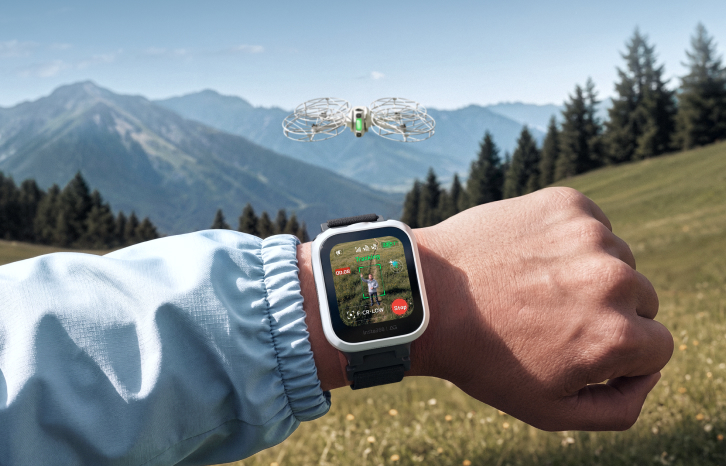
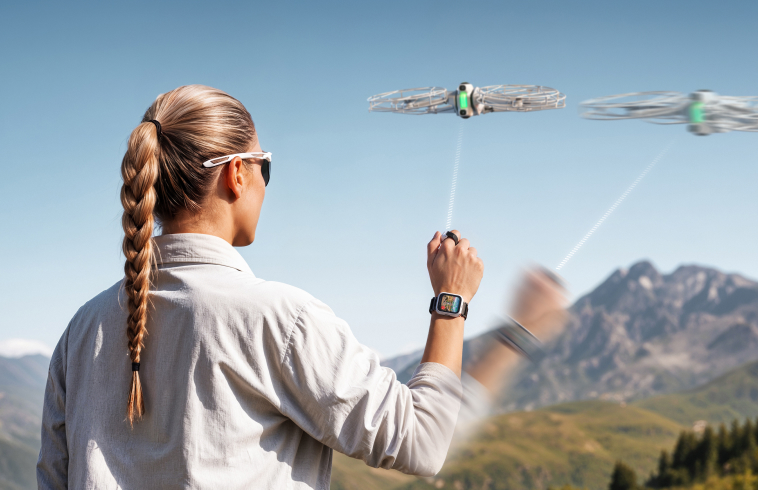
Watch Remote Is More Than a “Watch”
Watch Remote is a dedicated wrist-worn A1 controller, not simply a positioning accessory. It provides takeoff, recording controls and basic flight commands. Touch controls also let you change the drone’s position and its distance from the person being filmed.
It also has a second, less visible role: data from its built-in GPS supports Deep Track visual tracking . The drone receives additional information about your location instead of relying solely on recognising your silhouette.
This combination helps when you move faster or are briefly obscured from view. It should not, however, be taken as a promise of flawless tracking in every situation.
Ring Remote: Adjust the Flight with a Gesture
Watch Remote works with the compact Ring Remote worn on your finger. Drag-to-Fly lets you use hand gestures to reposition A1, bring it closer or move it further away. You are adjusting the drone’s actual position, not just the framing of the footage later.
You also have access to preset Sky Genie moves, including Orbit and Fly Away. That means changing the style of a shot does not always require you to fly the entire manoeuvre manually.
Why Does This Work So Well with 360°?
Follow Me takes care of following the subject, while 360° recording leaves you free to choose the framing afterwards. From a single flight, you can create a shot focused on the person or show more of the surroundings and the journey.
Imagine walking along an open trail: today you edit a film about your trip, and tomorrow you return to the same footage to tell the story of the location. There is no need to repeat the flight just because you have changed your mind about where the viewer should look.
Why Was Follow Me Introduced?
To reduce the need for constant manual piloting when filming yourself. It is designed for people who primarily want to take part in an experience and capture it, rather than spend the whole time operating the equipment. Automatic tracking does not, however, remove the need to supervise the flight.
Why Give A1 a Classic Dual-Stick Controller?
At first glance, it is a fair question: if Grip makes flying so simple, why introduce a traditional Remote Controller? The answer is not that one solution is better and the other worse. Making it easy to get airborne and making a specific manoeuvre feel natural are two different needs.
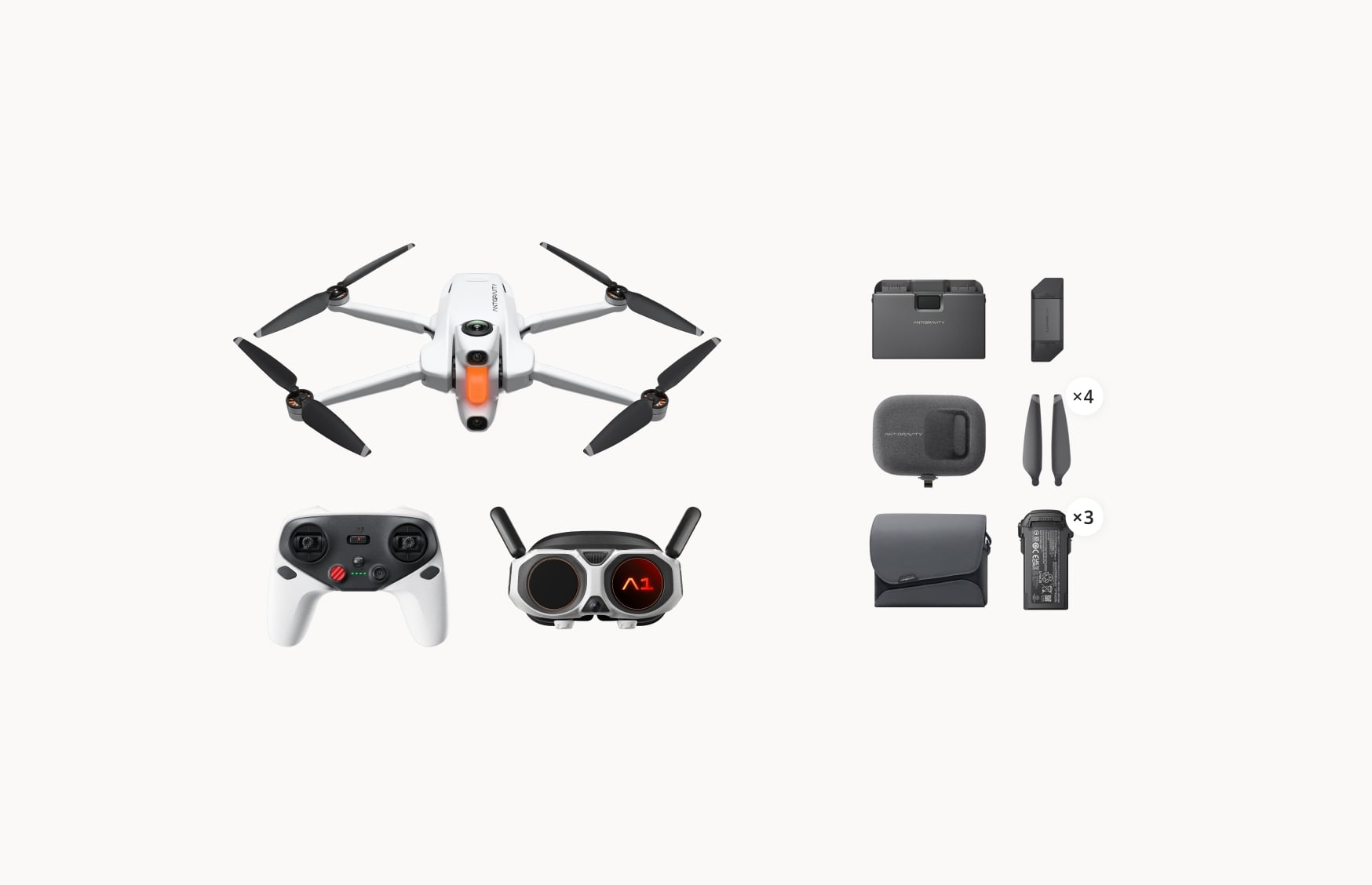
Familiar Controls for Experienced Pilots
The Remote Controller answers the needs of pilots accustomed to two sticks, as well as creators who want precise control over the drone. It supports Mode 1, Mode 2 and Mode 3, giving you a choice of control layouts.
For a beginner, pointing with a hand may feel natural. For someone who has spent years flying with sticks, a small thumb movement can feel just as intuitive. Switching equipment does not have to mean abandoning the habits you have developed.
In our view, this is the main reason for adding a classic controller: A1 can appeal to different pilots without forcing everyone to use the same control method . There is no need to take Grip’s simplicity away from beginners to give experienced users a familiar tool.
Plan the Movement, Not Just the Destination
When you are filming a carefully planned scene, the destination is only part of the picture. Flight speed, distance from the subject, altitude and the transitions between movements all matter.
Imagine smoothly pulling away from a person while climbing, or flying alongside them as the landscape gradually comes into view. These are examples of situations where a pilot accustomed to sticks may prefer to coordinate the movement directly rather than use a preset sequence.
That does not mean Grip cannot produce great shots. It is about matching the control method to your skills and the result you want . Two sticks will not do the work for the pilot, but they may be a more comfortable tool.
Reframing Cannot Change the Flight Path
This is the most important point that is easy to overlook with a 360° camera. After recording, you can change the viewing direction, but you cannot move the camera to a position it never occupied.
If the drone flew too far from the subject, reframing alone will not create the perspective of a close fly-by. If it did not make a gentle climb, rotating the virtual camera cannot replace physically rising above the scene.
The freedom to reframe does not make good piloting less important. Quite the opposite: a well-planned flight path gives you better footage to work with when choosing your shots later. Traditional controls and 360° recording are not opposites — they can complement each other very well.
Fixed View and Virtual Gimbal
The new controller also introduces Fixed View, which ties the live view to the direction the drone is facing. Virtual Gimbal lets you refine the viewing angle and composition during flight. Free View remains available for looking around freely.
What does that mean in practice? You can shape a specific shot while still in the air, rather than leaving every decision until the edit. At the same time, you retain the benefits of recording your surroundings in 360°.
Important: Remote Controller Still Requires Vision Goggles
The classic controller changes how you pilot the drone, but it is not a way to fly without goggles. That is where Watch Remote and Ring Remote open up new possibilities. These are two different additions, not two versions of the same product.
Three Ways to Fly. Which One Suits You?
Start by asking what you want to do during the flight: enjoy the flying experience, feature in the footage or take direct control of a planned camera movement.
On a phone, swipe the table sideways to see all columns.
| Control Option | How It Works | Vision Goggles | When Is It the Right Choice? |
|---|---|---|---|
| Grip Motion Controller | Hand-motion control, including FreeMotion mode. | Required. | When you value intuitive point-to-fly control and an immersive flight experience. |
| Follow Me: Watch Remote and Ring Remote | Wrist-based controls, gestures and automatic tracking. | Not required. | When you want to film yourself with less continuous manual input. |
| Remote Controller | A classic dual-stick layout. | Required. | When you prefer familiar controls and want to fly planned routes yourself. |
Already Own an A1? Expand What Matters to You
Existing drone owners can choose the Follow Me Accessory Kit — an accessory package without another A1. It includes Watch Remote, Ring Remote, full propeller guards and a bag, among other items. The classic Remote Controller is also available as a standalone accessory.
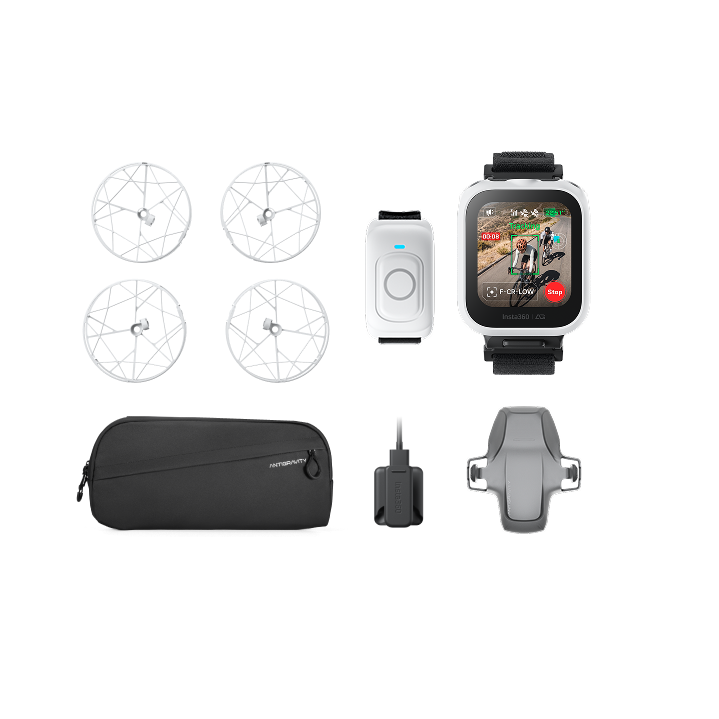
There is no need to buy both solutions at once. When filming yourself without goggles is the priority, start with Follow Me. When what you really miss is a pair of sticks, take a closer look at the Remote Controller. And when Grip already meets your needs, this launch takes nothing away from you.
This also matters when buying your first bundle: check exactly what is included. The Follow Me Bundle, the original Standard Bundle and the Remote Controller Bundle do not contain the same equipment.
Explore Antigravity A1 bundles at Insta360.pl
More Freedom Still Requires Supervision
Propeller guards and obstacle detection provide assistance, not a guarantee against collisions. When planning a shot, take the surroundings, visibility and weather into account. Do not automatically apply the base A1’s weight or flight-time figures to a configuration with additional guards or a different battery.
Flying without goggles makes it easier to observe your surroundings directly, but it does not remove the rules governing drone flights. EASA states that FPV flights using goggles in the open category require an observer standing next to the pilot. Follow Me also has conditions of use — automatic tracking is not permission to fly anywhere.
Read EASA’s guidance on FPV, observers and Follow Me
Images and videos: official Antigravity materials from the A1 Follow Me and A1 Remote Controller Bundle pages.
Documentation and Launch Details
Antigravity A1 accessory launch — 20 October 2026