

Insta360 and Elgato Stream Deck: Less Clicking, More Control
October 13, 2026
You're delivering an important presentation. You're talking to a client, demonstrating a product, or explaining something to your audience. Everything is going smoothly — until you need to change the framing, zoom in, or enable AI tracking.
Suddenly, you're searching for the right window, navigating settings, and checking whether your camera is showing exactly what you want. For a moment, your attention shifts away from the conversation and towards managing your equipment.
What if your camera's most important functions were available at the press of a physical button, right at your fingertips?
That's exactly what the partnership between Insta360 and Elgato makes possible. By integrating Insta360 Link 2 and Link 2 Pro series webcams with Elgato Stream Deck controllers, you can manage supported camera functions without repeatedly opening the settings panel.
And this isn't just about livestreaming. The integration can make everyday work easier for managers, consultants, educators, podcasters, content creators, and anyone who regularly works in front of a camera.
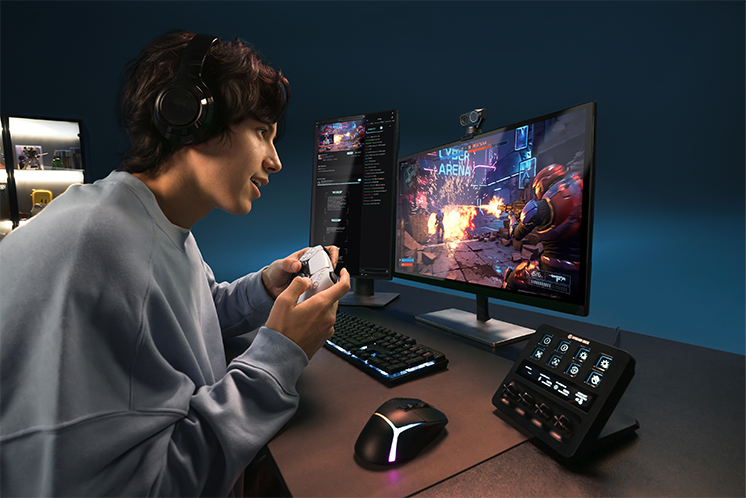
What changes?
Instead of adapting your presentation to the way your camera's controls work, you can adapt those controls to the way you prefer to work.
Less clicking. More control. More attention on what really matters.
Insta360 and Elgato: Two Parts of One Connected Workspace
Insta360 Link webcams offer far more than simply sending video to your computer. Depending on the model, they provide intelligent framing, subject tracking, digital zoom, advanced image settings, and dedicated presentation modes.
But the more features a device offers, the more important it becomes to make those features easy to access. Even an excellent function loses some of its value if activating it means interrupting a conversation and searching through menus.
Elgato Stream Deck addresses this problem in a straightforward way. It's a physical controller with programmable buttons that can be assigned to functions in supported applications and devices.
Each button can trigger a specific action: changing a setting, recalling a saved configuration, or activating a feature through a compatible plugin.
With the Insta360 Webcam plugin, Stream Deck can now become a convenient control panel for a compatible Insta360 webcam.
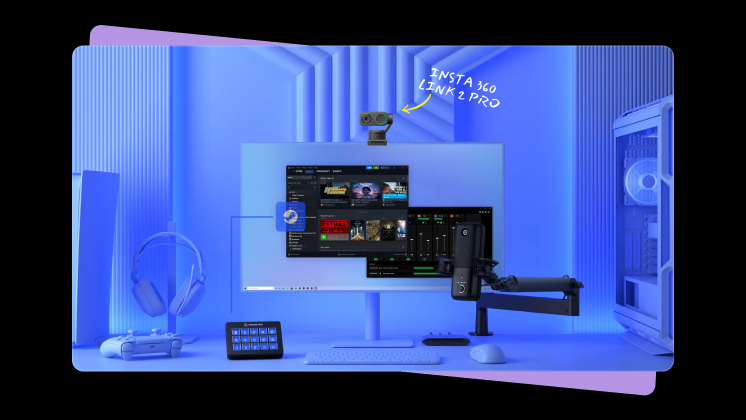
What Can You Actually Control with Stream Deck?
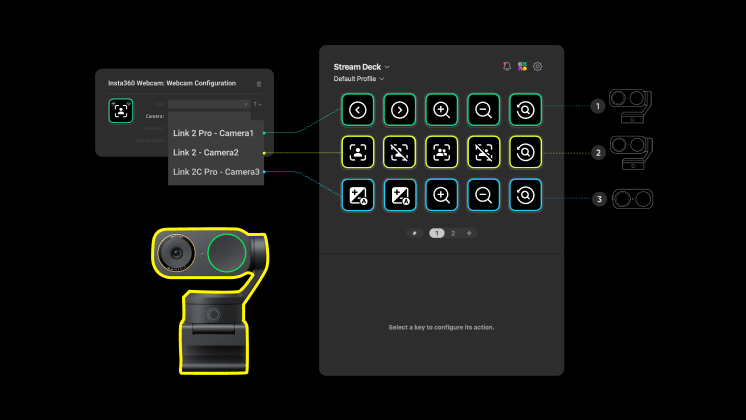
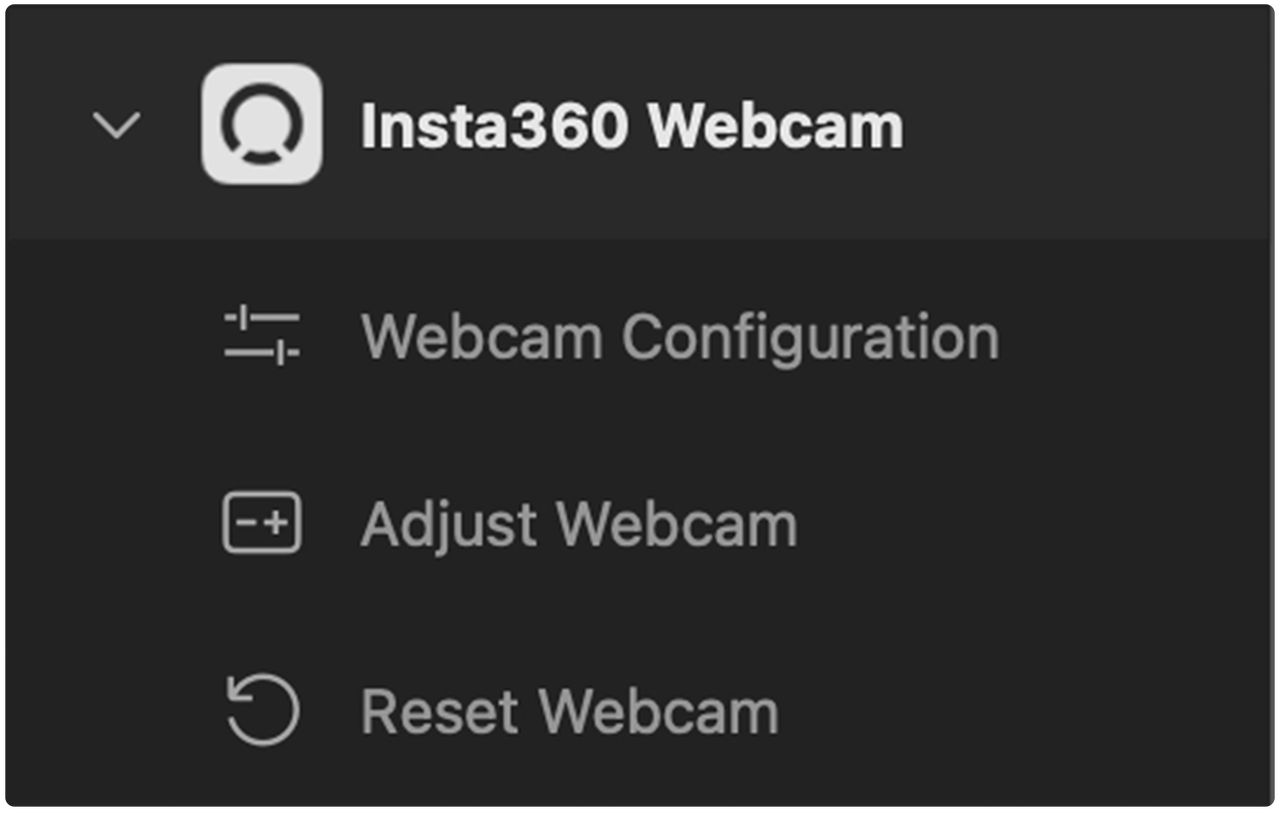
The Insta360 Webcam plugin provides three main types of actions: Webcam Configuration, Adjust Webcam, and Reset Webcam.
Webcam Configuration lets you set a supported parameter to a specific value or toggle a function. Adjust Webcam provides incremental control, such as changing zoom step by step. Reset Webcam allows you to restore the camera's initial settings.
In practice, these actions cover several particularly useful areas.
AI Tracking: Let the Camera Follow You
When presenting, you don't always sit perfectly still in front of your monitor. You might stand up, move towards a whiteboard, demonstrate a product, or change your position within the scene.
AI Tracking allows a compatible camera to follow its subject. Through the integration, you can assign a Stream Deck button to enable or disable this feature.
That's useful when you want to decide precisely when the camera should follow your movements and when it should maintain a fixed composition.
How tracking works depends on the camera's design. Models equipped with a gimbal can physically move their lens, while compact models without a moving head use different framing capabilities.
Zoom and Framing Control
Need a closer shot of your face, want to draw attention to a particular detail, or prefer to return to a wider view?
You can assign zoom controls to Stream Deck buttons and adjust the image incrementally. The integration guide demonstrates a configuration using separate buttons with values of +0.1 and -0.1.
On models equipped with a mechanical gimbal, you can also control the camera's physical direction — moving it up, down, left, or right — and reset its position.
This makes it easier to refine your framing during meetings or recordings without opening a separate camera control window.
DeskView and Presentation Modes
Not every presentation revolves around slides. Sometimes, a physical object, sketch, handwritten note, or document on your desk communicates an idea far more effectively.
DeskView, available in supported configurations, makes it possible to present your desk surface using an appropriately positioned webcam.
The integration documentation confirms that a DeskView toggle can be assigned to Stream Deck.
With a compatible camera and a properly configured setup, you can switch to a desk demonstration during your presentation and then return to your previous view.
The documentation also describes saving selected AI modes, including Whiteboard Mode, as part of camera presets. The actual availability of these modes depends on the camera model and software configuration.
Presets: Prepare Your Camera Before You Start
One of the most practical benefits of the integration is the ability to recall saved configurations.
Instead of adjusting your camera from scratch every time, you can prepare settings for the different tasks you perform throughout the day.
- Video calls: framing and image settings suited to face-to-face conversations.
- Presentations: a setup prepared for demonstrating content or delivering training.
- Recording: your preferred camera settings for producing videos at your desk.
Once supported parameters have been saved, recalling them may require nothing more than pressing the assigned button.
That's especially convenient when the same workstation is used for several different activities.
Good to Know
The range of parameters stored in a preset depends on the operating environment. Some hardware functions and AI modes can work without the Link Controller interface being open, while software-based effects such as filters or virtual backgrounds may require the application to remain running in the background.
When switching between different presets, the documentation recommends leaving at least three seconds between commands so the camera has time to complete the previous action.
Brightness, Exposure, and White Balance
Lighting conditions can change even during a single meeting. Sunlight coming through a window, a desk lamp being switched on, or a change of position can all affect how your image looks.
The plugin allows you to assign supported image settings to Stream Deck buttons, including brightness, exposure, color temperature, and white balance.
That means you can prepare convenient ways to adjust your camera without repeatedly opening the settings interface.
It won't replace good lighting, but it does give you greater control over your image while you're working.
Stream Deck in Everyday Use: Beyond Livestreaming
The integration's biggest advantage isn't simply the number of commands it offers. It's the ability to use those commands in situations where your attention should be on the people you're speaking to, rather than on software menus.
Business Meetings and Hybrid Work
For people who divide their working week between home, the office, and other locations, video meetings are often an essential part of everyday communication.
A manager leading a project meeting can prepare preferred framing and image settings before the call begins. If a wider shot is needed, they can use an assigned command or preset.
This reduces the need to interrupt the conversation or search for camera controls while sharing a screen.
The same convenience can benefit recruiters conducting interviews, HR professionals organizing onboarding sessions, and consultants who regularly meet clients online.
B2B Sales and Product Demonstrations
Imagine a sales consultant introducing a new device during a video meeting.
They begin by speaking directly to the client. Then, they want to demonstrate a detail of the product sitting on their desk.
With a properly configured setup and a supported webcam, they can activate DeskView through Stream Deck. Once the demonstration is complete, they can return to the previous framing.
There's no need to search for the right toggle in the camera control application. The conversation remains focused on the product and the client's needs.
This approach is also valuable for designers presenting sketches, architects discussing documentation, and creative agencies showing physical materials or concepts.
Education, Training, and Online Courses
When teaching online, the ability to move naturally between explaining a subject and showing supporting materials can make a real difference.
Teachers, trainers, and lecturers can use saved settings and supported framing modes to adapt the camera view to the flow of a lesson.
For example, while explaining a technical process, an instructor might demonstrate an object on the desk before returning to the main presenter view.
When a whiteboard is involved, a compatible camera and a properly configured preset can help with accessing the supported Whiteboard mode.
It's worth testing these settings before the session begins. A little preparation reduces the need for technical adjustments during the lesson.
YouTube, Podcasts, and Desk-Based Video Production
A creator recording a product tutorial often appears on camera while simultaneously managing equipment and software.
Saved presets make it easier to maintain a consistent look across recordings. Buttons assigned to zoom and framing provide additional control without constantly reaching for the mouse.
For video podcasts and online interviews, controlling multiple compatible Insta360 cameras from a single Stream Deck can also be useful.
You can assign actions to selected cameras and manage their framing and image settings.
However, controlling the cameras is not the same as switching between video sources in the final livestream or recording. That requires suitable production software and its own integration.
Streaming and Gaming
Livestreamers want to stay focused on the game, the conversation with viewers, or the content they're presenting.
A physical button assigned to zoom, AI Tracking, or a preset can be much more convenient than manually changing settings across several application windows.
But the integration can also be useful for gamers who don't stream their gameplay.
During video calls with friends, they can recall their preferred framing or disable tracking when it isn't needed.
More Inspiration for Content Creators
A webcam doesn't have to be limited to video calls. It can become a central part of a setup for recording tutorials, delivering training, and demonstrating products.
If you're considering which camera is best suited to these tasks, read our article "The Best Camera for Online Content Creators". It explores the needs of online creators and the importance of choosing appropriate recording equipment.
One Workspace, Different Activities
The same desk can be used for a client meeting in the morning, recording a video in the afternoon, and livestreaming in the evening.
Rather than reconfiguring the camera every time, you can prepare button layouts and presets suited to each activity.
Camera, Microphone, Lighting, and OBS: Building a Connected Setup
Stream Deck becomes especially interesting when it controls more than one device or application.
On the same controller, you can place buttons for supported Insta360 webcam functions alongside controls for other software and equipment in your workspace.
For example, separate integrations may allow you to manage scenes in OBS Studio, selected audio functions, or compatible lighting equipment.
There is an important distinction: the Insta360 Webcam plugin is designed to control compatible webcams. Microphones, lights, streaming scenes, and other applications rely on separate features and plugins within the Stream Deck ecosystem.
The capabilities of the overall setup therefore depend on the compatibility of each device, the software you're using, and how everything is configured.
How to Set Up Insta360 with Stream Deck
Getting started involves connecting your devices, installing the official plugin, and assigning actions to your Stream Deck buttons.
- Connect your webcam. Connect a compatible Insta360 Link webcam to your computer and confirm that it's working correctly.
- Connect Stream Deck. Connect your controller and launch the Elgato Stream Deck application.
- Install the plugin. Search for "Insta360 Webcam" in Elgato Marketplace and install the official plugin.
- Choose an action. Find the Insta360 Webcam section in the Stream Deck application. The available action categories include Webcam Configuration, Adjust Webcam, and Reset Webcam.
- Assign a function. Drag the desired action onto a button, select your camera, and configure the supported parameter.
- Test your controls. Check that the buttons perform the expected actions before starting a meeting, recording, or livestream.
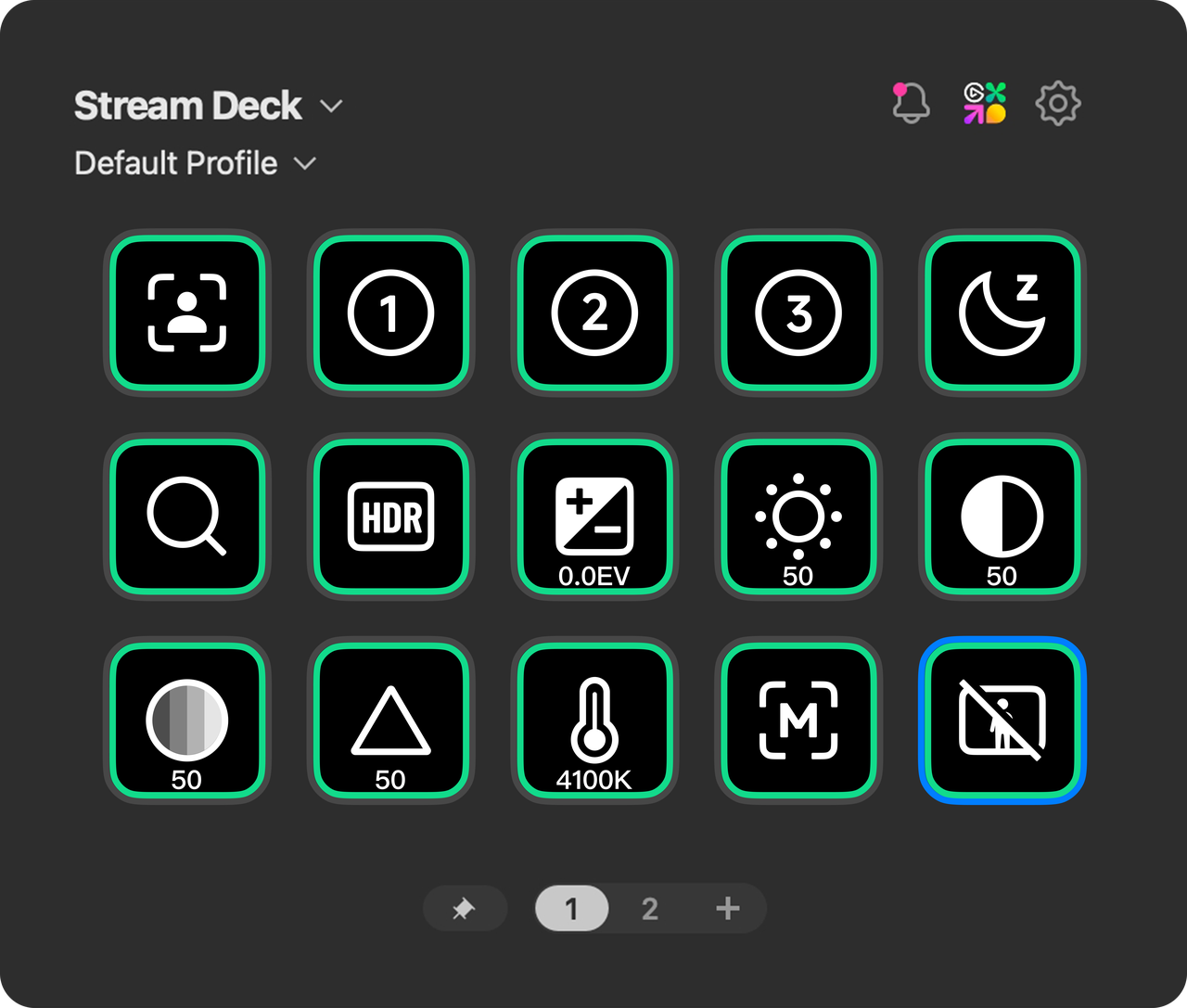
We recommend starting with a simple button layout: AI Tracking on/off, zoom in and out, one or two presets, and a reset action.
If your camera has a gimbal, you can also assign buttons for directional movement and resetting its position.
Once you're comfortable with the basic controls, you can gradually expand your setup with additional functions.
Software Requirements and Compatibility
The Insta360 Webcam plugin is available for Windows and macOS.
Elgato Marketplace specifies Stream Deck software version 6.9 or later.
On macOS, you may also need to grant the application the appropriate system permissions.
Some software-based effects require Insta360 Link Controller to remain running in the background. The availability of individual commands depends on the webcam model and software environment.
Which Insta360 Webcams Work with Stream Deck?
The integration covers the Insta360 Link 2 and Link 2 Pro families. These include cameras with different designs and capabilities.
The key differences include whether the camera has a mechanical gimbal, how it handles framing, and which controls are supported.
Insta360 Link 2 Pro
Insta360 Link 2 Pro is an advanced AI-powered 4K webcam designed for demanding users, content creators, and business professionals.
Its mechanical gimbal enables physical control over the camera's direction using supported commands.
It's particularly attractive for presentations, training sessions, livestreams, and recordings where the framing needs to change as the session progresses.
If you're deciding between Link 2 Pro and the standard Link 2, our product page also includes a detailed comparison. It covers aspects such as sensor size, low-light performance, audio capabilities, and camera control.
Insta360 Link 2C Pro
Link 2C Pro is designed for users who want high-quality 4K video and advanced webcam capabilities in a compact design without a mechanical gimbal.
It's an excellent option to consider for a fixed workspace, professional video meetings, webinars, and desk-based recordings.
However, because it has no mechanical moving head, physical gimbal rotation commands cannot be used with this model.
Compared with the standard Link 2C, the Pro version offers a larger sensor, Dual Native ISO, and enhanced audio capabilities. You can find a more detailed comparison on our product page.
Insta360 Link 2
Insta360 Link 2 is an AI-powered 4K webcam with a 2-axis gimbal. Its design allows the camera to physically move, making it especially useful for presentations, training sessions, and recordings where the presenter moves around.
It's a strong option for users who need intelligent tracking but don't necessarily require every feature offered by the flagship Pro model.
Insta360 Link 2C
Link 2C is a compact AI-powered 4K webcam without a mechanical gimbal. It's primarily designed for fixed workstations, video conferencing, webinars, and recording content at a desk.
Not having a moving camera head doesn't mean giving up intelligent features. Link 2C offers capabilities including automatic framing and adjustable image settings that can be adapted to your workflow.
If you don't need the camera to physically follow your movements, Link 2C may be a better fit than a gimbal-equipped model.
Which Model Should You Choose?
If you frequently move during presentations, show different parts of a room, or need to physically adjust the camera's direction, consider Link 2 or Link 2 Pro with their mechanical gimbals.
If you mostly work at a desk and prefer a compact design, take a closer look at Link 2C and Link 2C Pro.
The Pro versions offer additional image and audio capabilities that can be especially valuable for professional meetings, presentations, and recordings.
Recommended reading before buying: Insta360 Link 2 and Link 2C — Setting New Standards in Video Calls and Streaming. Our in-depth article explores the features and applications of both models.
Important: Always check which Stream Deck actions are supported by your specific camera model and software version. Compatibility with the integration does not mean that every webcam provides an identical set of controls.
Is Stream Deck Worth Buying Just for Your Webcam?
The answer depends mainly on how you use your camera.
If you join an occasional short video call and rarely change your webcam settings, a separate controller may not be necessary.
Things look different if you regularly deliver presentations, record videos, teach online, or work with several applications at the same time.
In those situations, moving important camera controls to physical buttons can make managing your setup noticeably more convenient.
For people who already own a Stream Deck, Insta360 webcam integration offers another practical way to use equipment they already know.
Rather than introducing an entirely new workflow, you can bring your webcam into an existing control environment.
One Controller, More Possibilities
A professional on-camera workspace doesn't have to be complicated. What matters most is that your devices work together predictably and support the way you actually work.
The Insta360 and Elgato Stream Deck integration demonstrates how much easier everyday tasks can become when frequently used camera functions are available through thoughtfully assigned controls.
The goal isn't to press as many buttons as possible during a meeting. It's to have the right button available exactly when you need it.
Less Clicking. More Control.
A good webcam helps you look professional. A well-designed workspace also helps you work more naturally and efficiently.
With Insta360 and Elgato working together, you can assign supported camera functions to Stream Deck buttons, recall prepared configurations, and manage your image more conveniently during meetings, recordings, and livestreams.
Whether you're running a business, teaching, producing videos, or regularly meeting clients online, it's worth considering not only how good your camera looks, but also how easy it is to control.
Because the best technology helps you stay focused on your work — instead of distracting you from it.